
Brandgility August Release: Whats New?
September 1st, 2025
Written by: Rob Atkinson, Product Specialist
Platform Highlights
Order History Enhancements
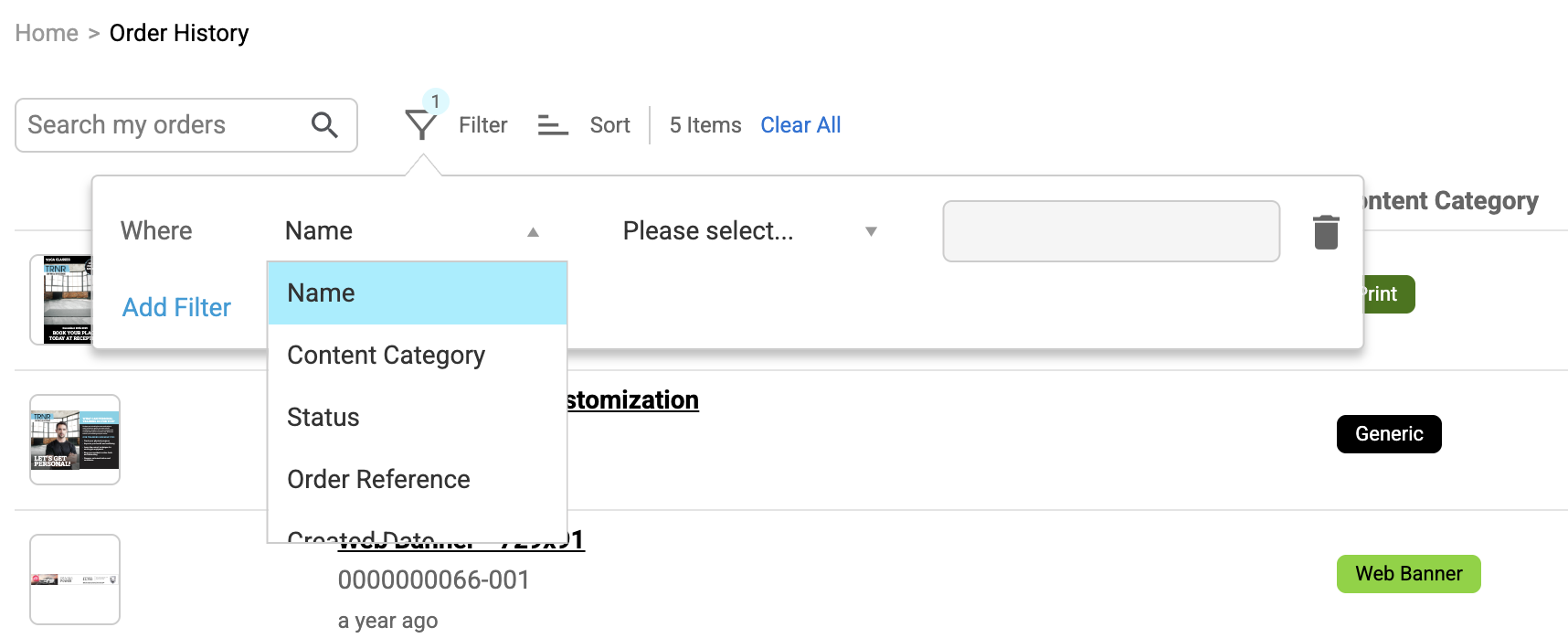
The Order History function has been enhanced to include search, filter and sort capabilities
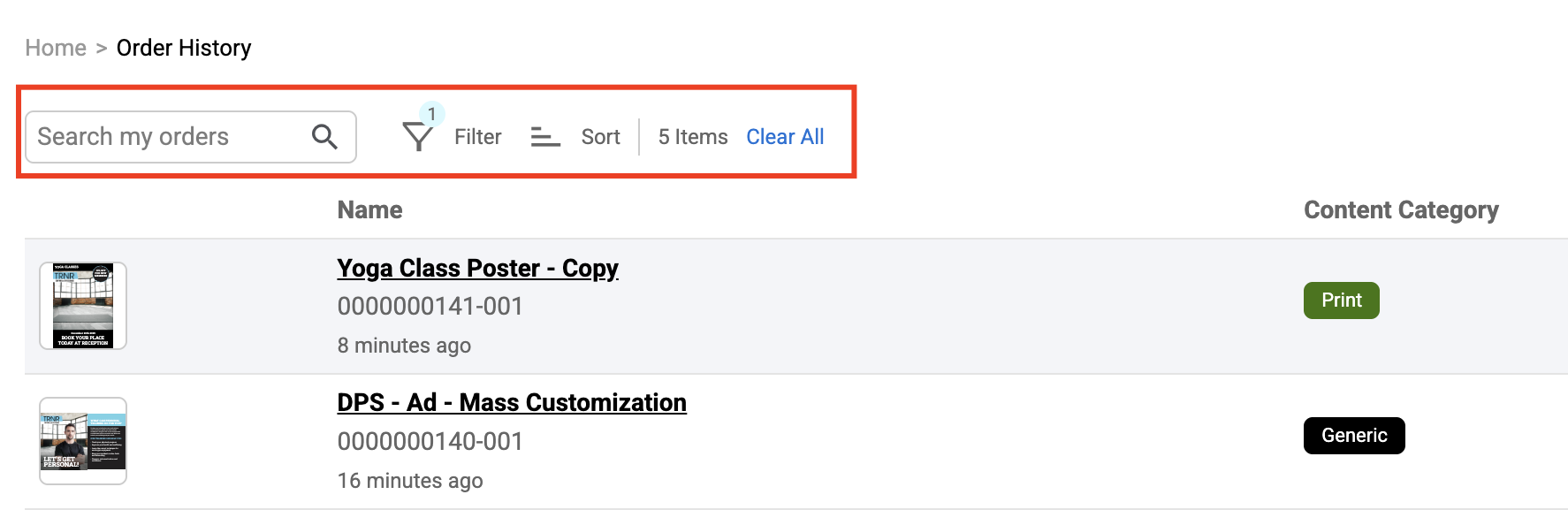
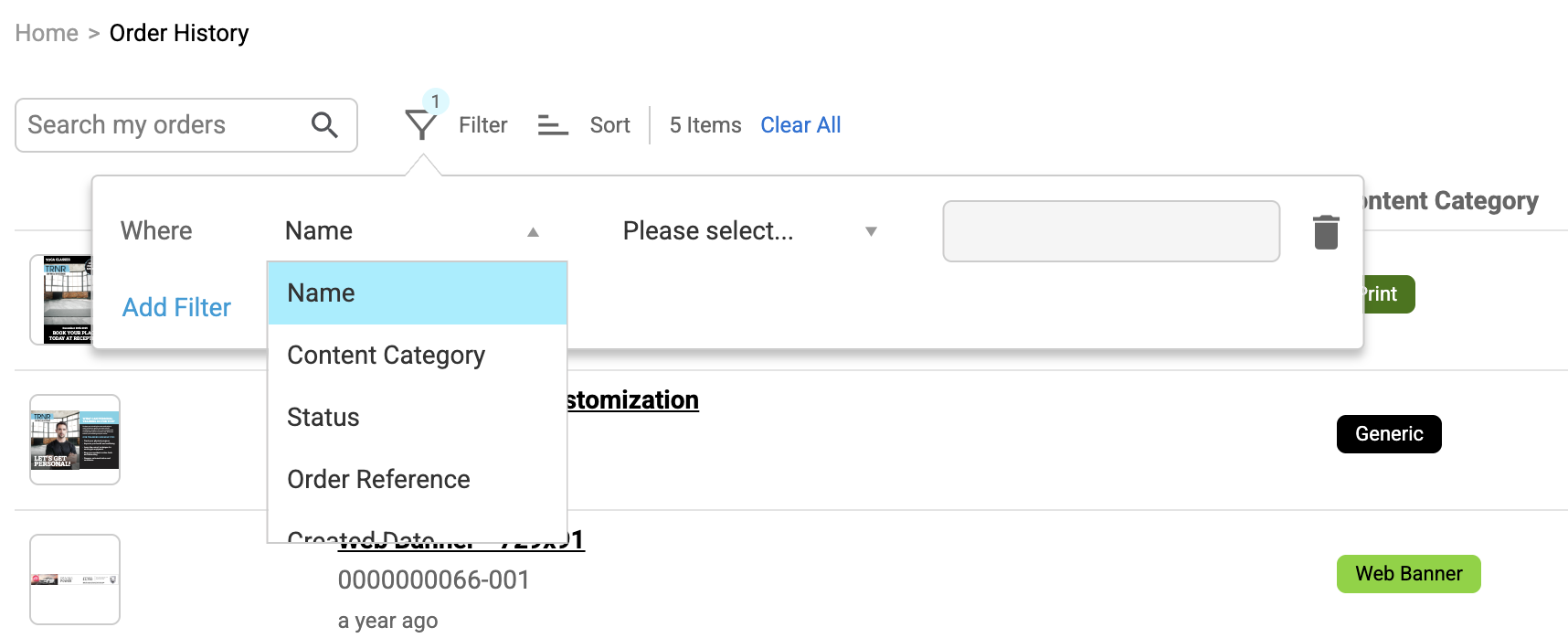
An enhancement to our search engine means users can now search their orders by specific fields, for example order reference, Asset Name, Status, etc.
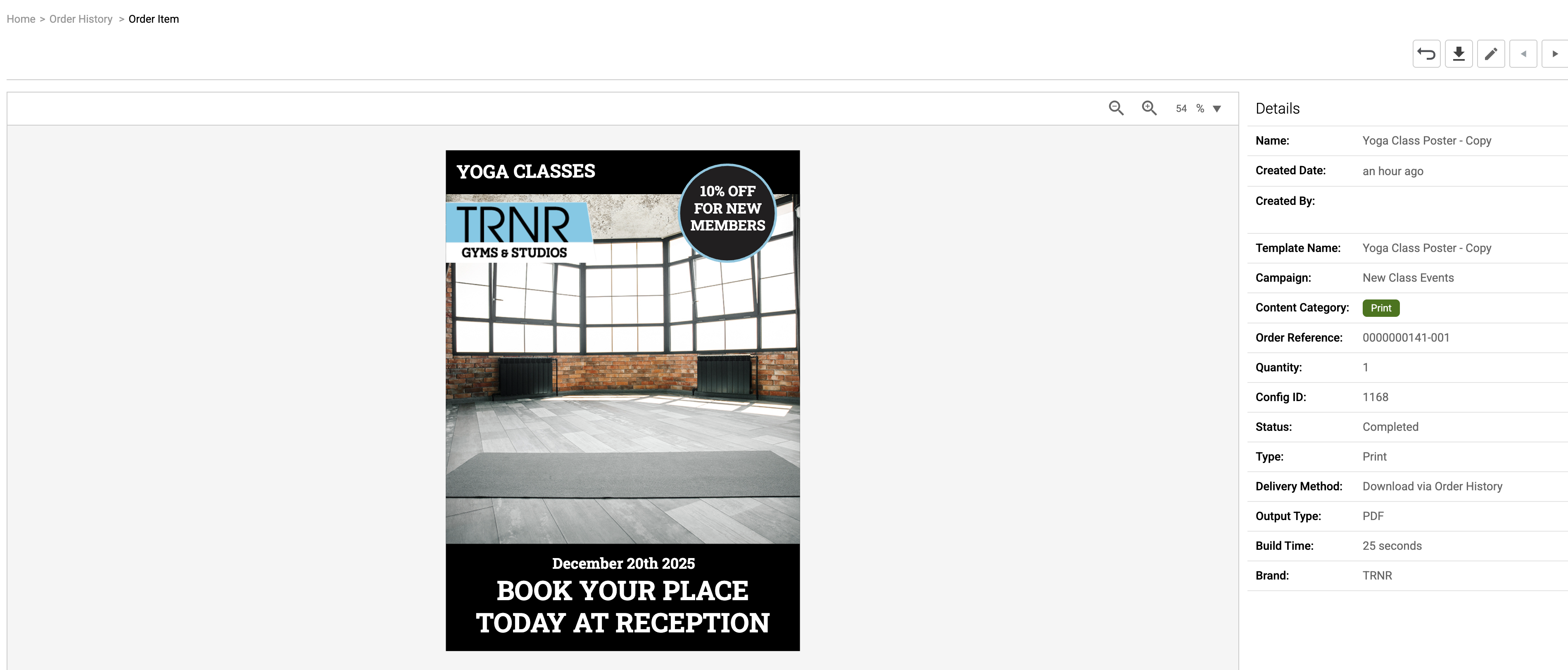
The UI allows for a ordered item to be previewed and it also shows the metadata for the ordered asset.
Administrator Order History
An Administrator is now able to view the details of every order requested by their users. The option to access this functionality can be found under the cog icon (when you have the new “View All Orders” permission).
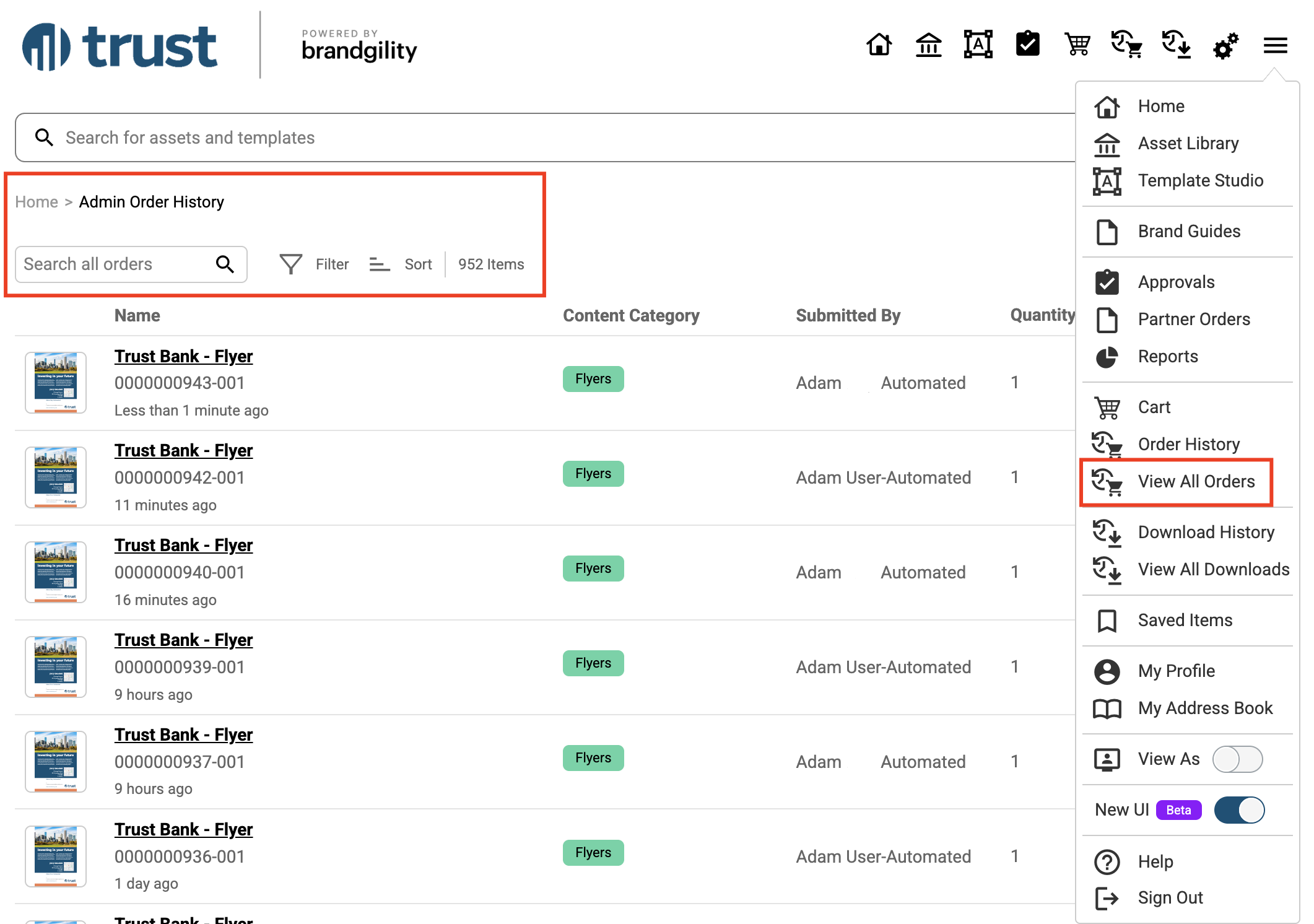
With our new search engine enhancement for the order data, the administrator can search for any order by specific fields, for example Created by, Order Reference, Asset Name, Status, Order Date, etc.
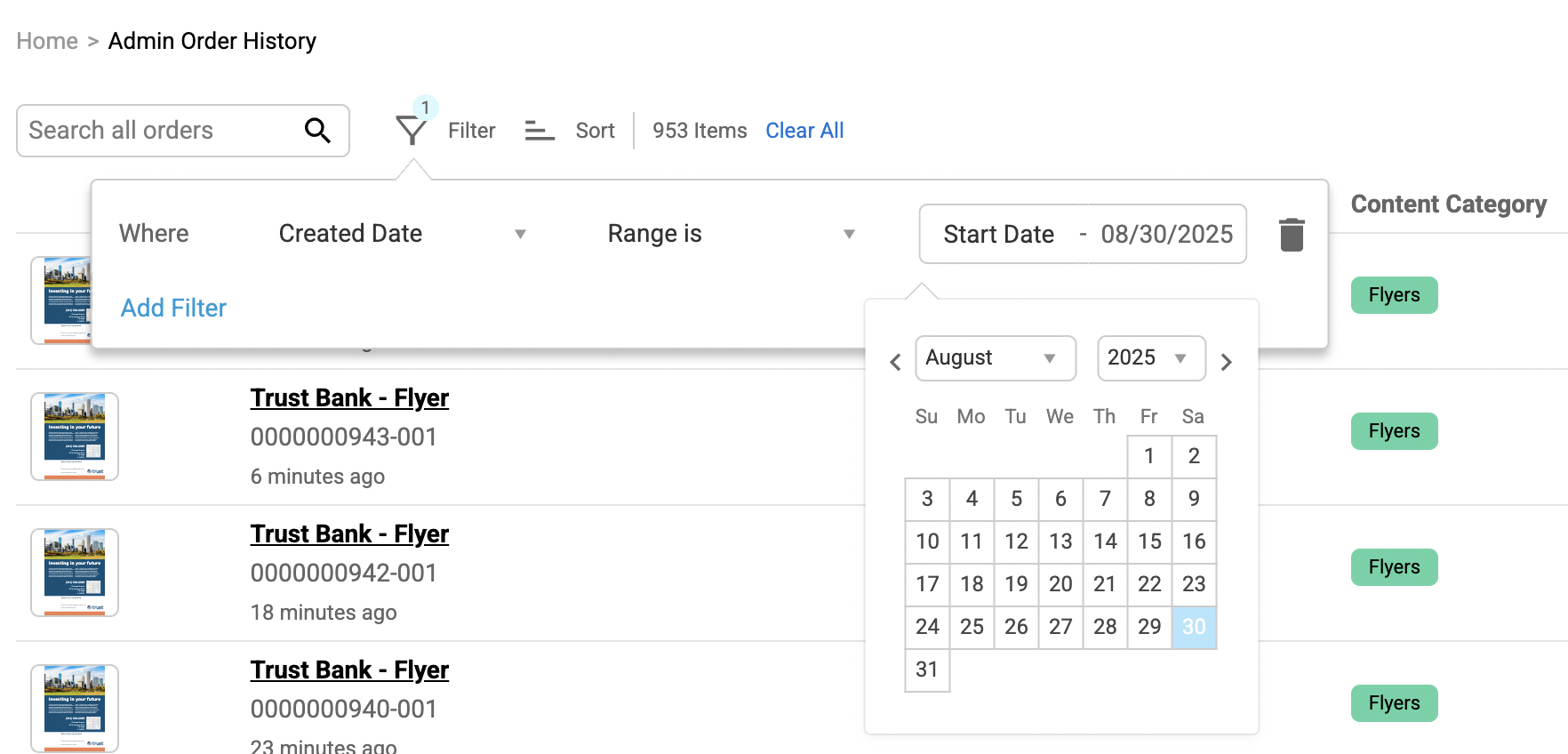
Any ordered item can be previewed, and this also shows the metadata for the ordered asset.
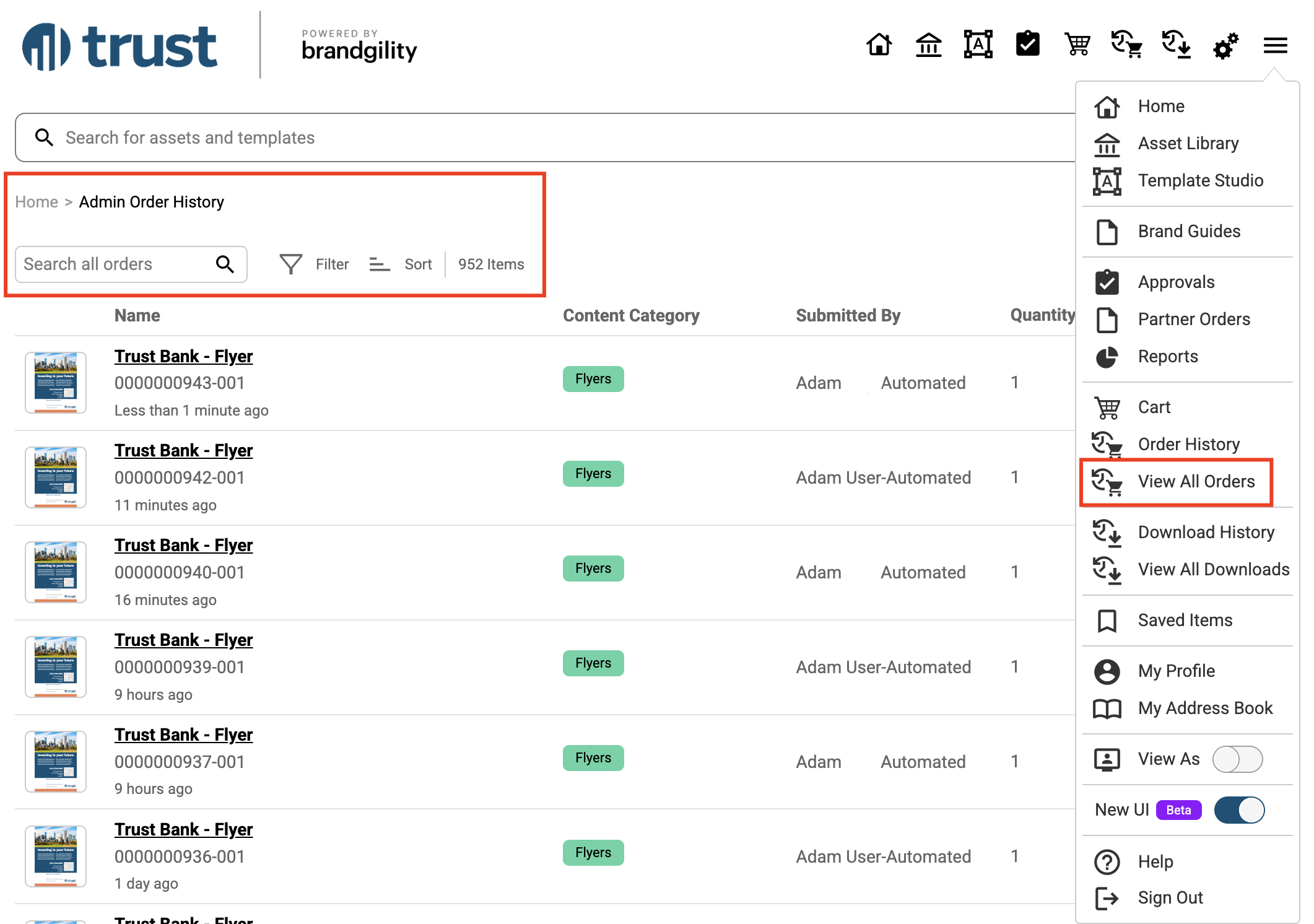
View as another role
New functionality has been introduced that allows a user (with the appropriate permission) to see how Brandgility operates for another user who may have a different role or roles*, thus allowing an administrator to replicate the behaviour of the application as seen by their users.
Multiple role selection
If the “multi” role functionality is enabled on your account, then it is possible to select a combination of roles from the those listed to mirror another user’s role(s). The new permission required on your role to enable this functionality is called “View as another role”. With this assigned, a new option is displayed under the burger menu, as follows:
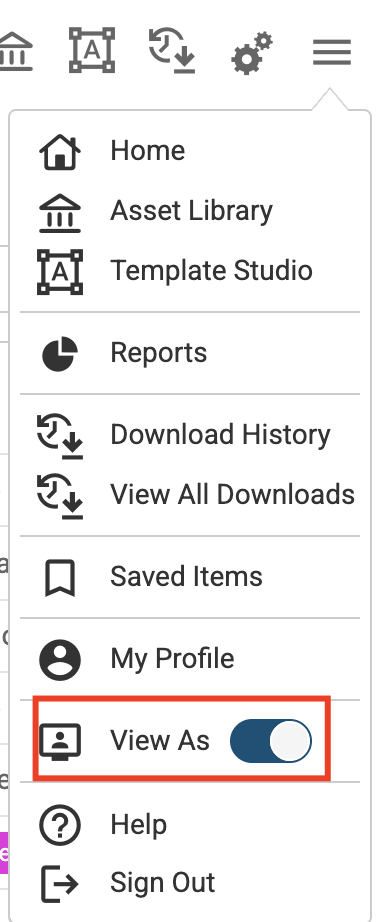
When this slider is turned on, the “View as another role” functionality is activated, and this is signified by an indicator bar - seen at the top of the page. To select a role or a number of roles (in order to “View as another role”), the user must click the ellipses icon. This triggers a role selection flyout to appear. The flyout shows all configured roles and will allow for one (or a selection of roles) to be chosen from the list.
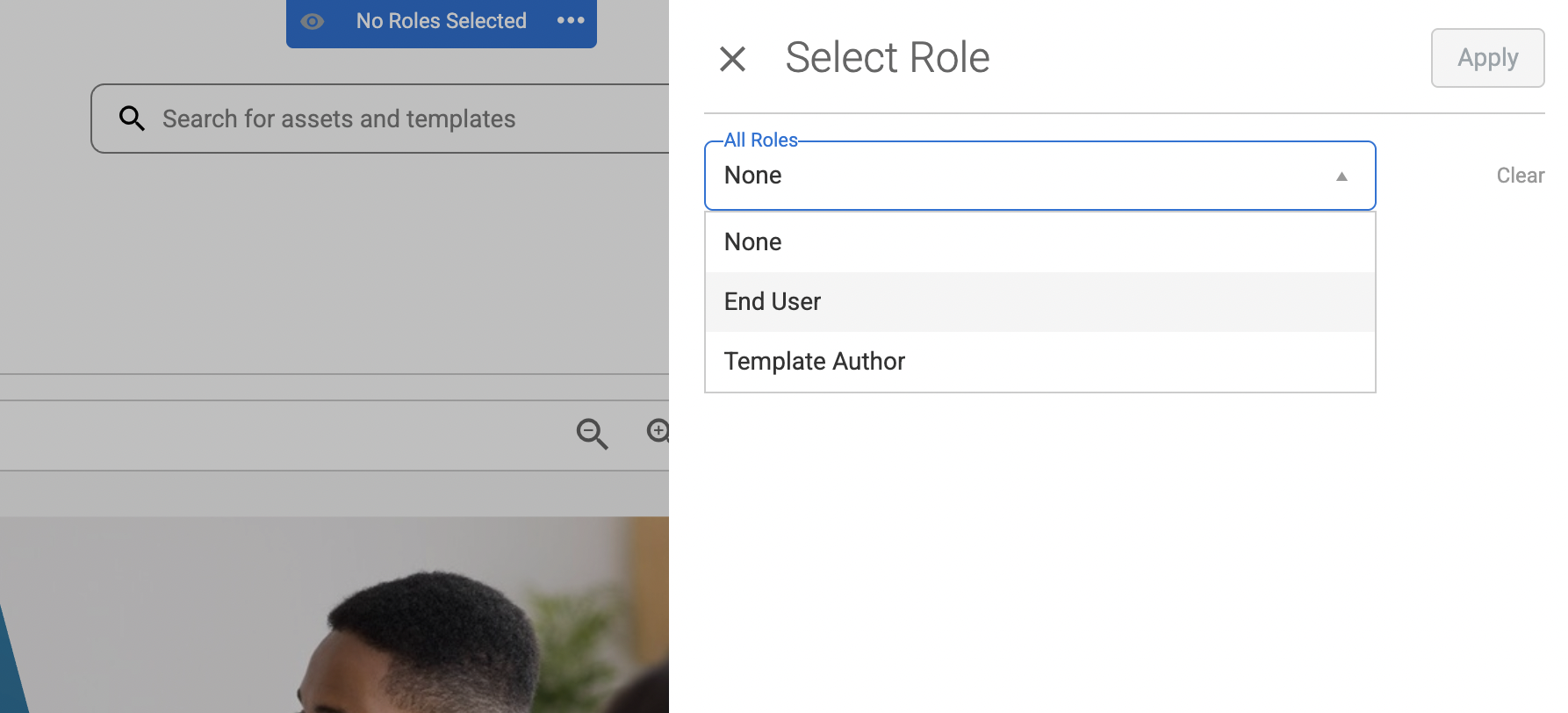
Following confirmation of the above selection, the current page is refreshed and is redisplayed using the selected role or roles, as confirmed by in the indicator bar at the top of the page:

You are now able to navigate around the Brandgility application with the selected role or roles being applied. Consequently, the data displayed, and the options presented, plus any functionality available via the cogs and/or burger menus (except for the “view as” indicator bar and option slider) will replicate what is seen by another user who has an identical role or roles.
The “View as” functionality can be temporarily disabled by clicking the “eye” icon in the indicator bar, as follows:

This will revert you back to your original role or roles.
By re-clicking the “eye” icon, the “View as” functionality can be quickly re-enabled for the selected role or roles, as shown in the indicator bar. If you wish to alter the role(s) then click the ellipses icon to access the role selection flyout again. When you are finished with or if no longer require the “View as” functionality, then this can be easily stopped by selecting the “view as” slider again, via the burger menu.
Attribute validation using regular expressions
A regular expression (regex) can now be applied to a text or number attribute field, thereby allowing validation to be applied to any value entered into the field by a user.
The additional fields to configure the regex appear below the Attribute type :
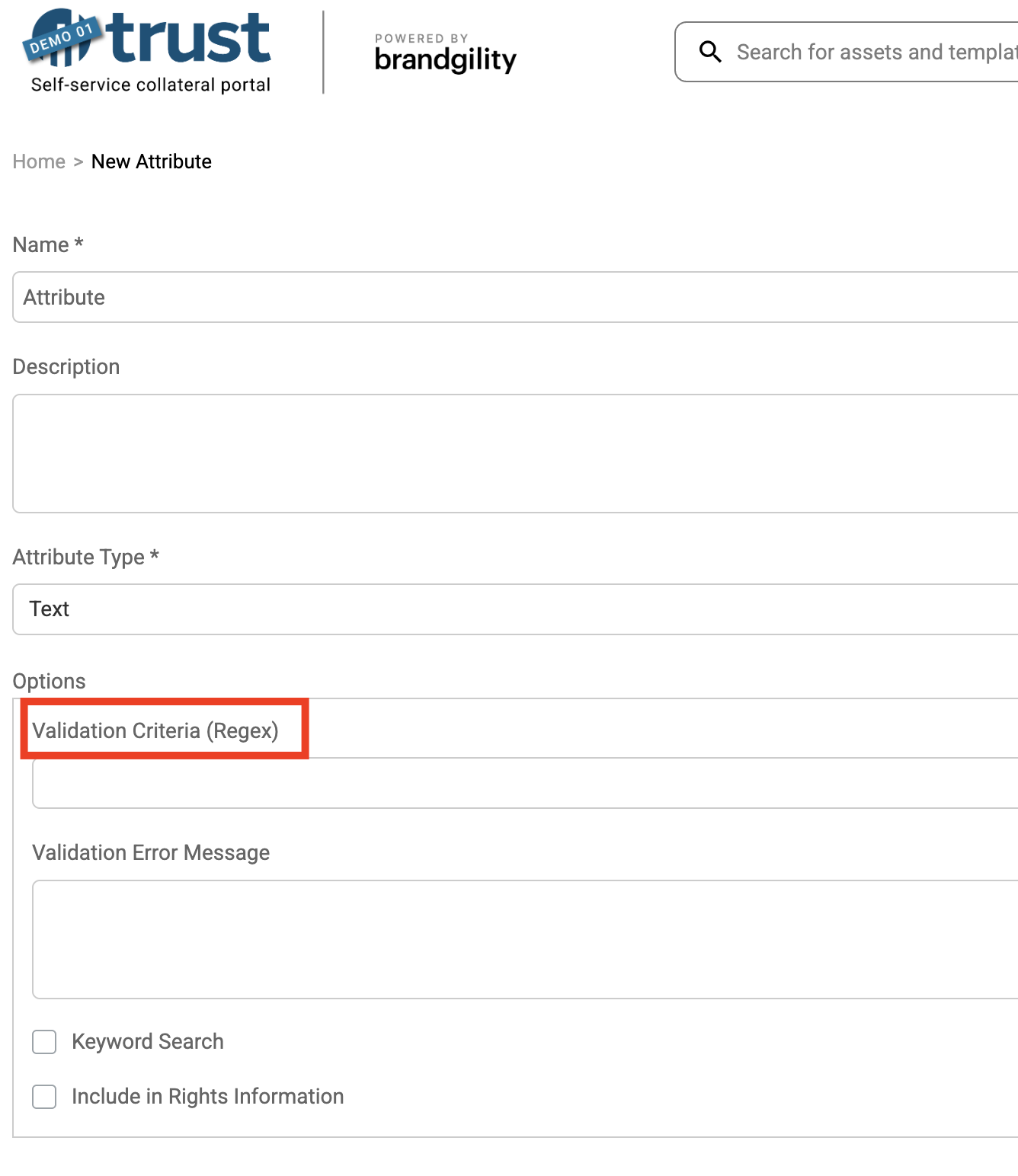
The Validation Criteria field will accept any valid “regex” expression, such as: ^[A-Z][a-z]*$
As an example, the above expression ensures that any text entered into the attribute field:
Starts with exactly one uppercase letter
Is followed by zero or more lowercase letters
Contain nothing else (no digits, punctuation, or spaces)
It is also possible to enter the text that is to be shown as the error message, displayed to the user if the value entered does not pass the regex expression validation.
An attribute can be associated with:
An Asset or Campaign to hold metadata.
A User profile to store user specific data.
A Partner to capture information when an order is placed with the partner.
User Asset Association
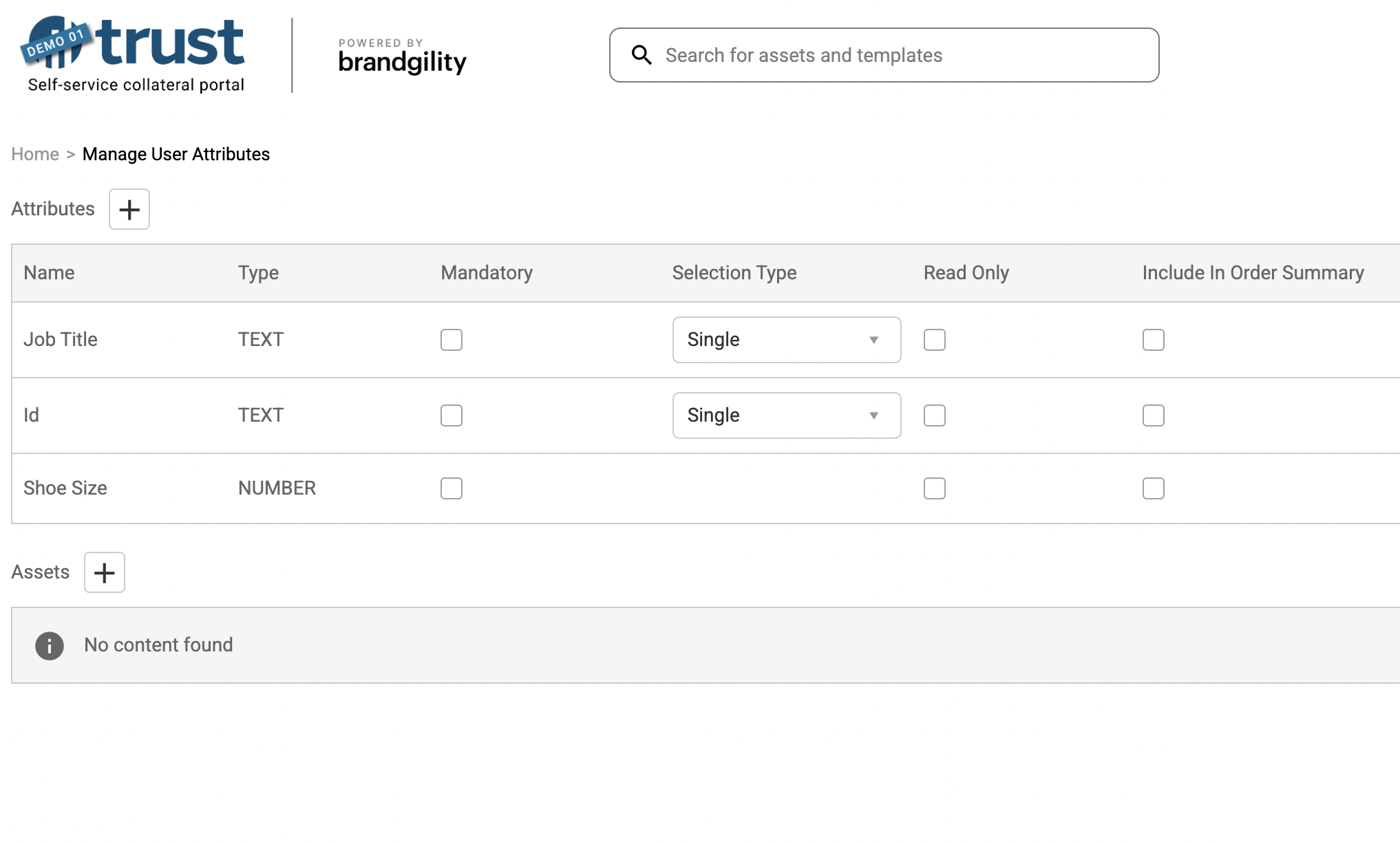
The User attribute configuration has been extended to allow for a specific asset type to be selected and associated with a user’s profile. This is configured on the User Attributes page by selecting the Assets + icon, shown below:
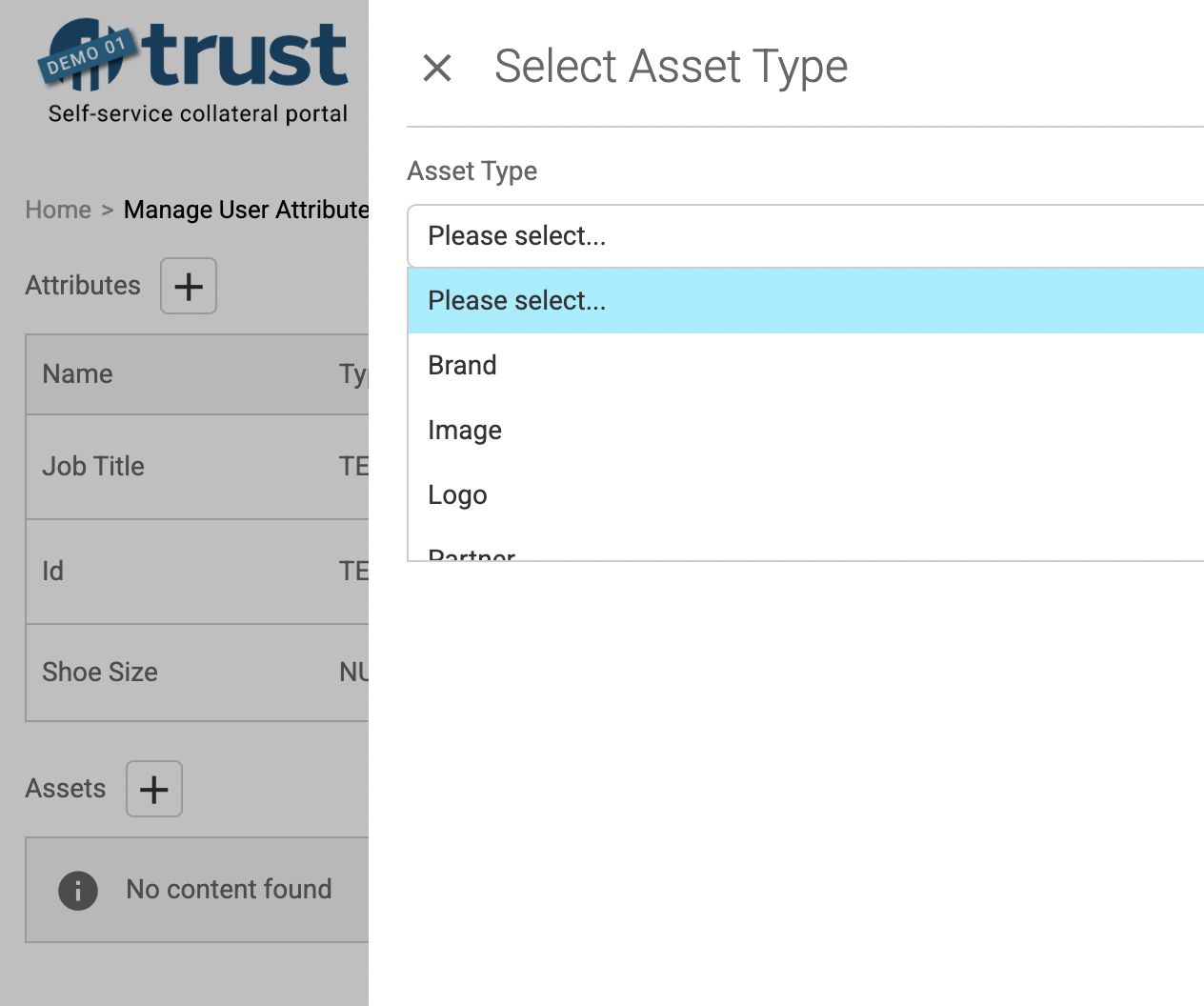
And then by selecting the relevant Asset type from the available list:
Once the above is configured, a User’s profile can then be updated, via the attributes tab, to be associated with a specific asset record (or multiple asset records if the “multi” option has been configured). This association is performed by selecting from the list of assets presented via a dropdown of asset records for the asset type, as follows:
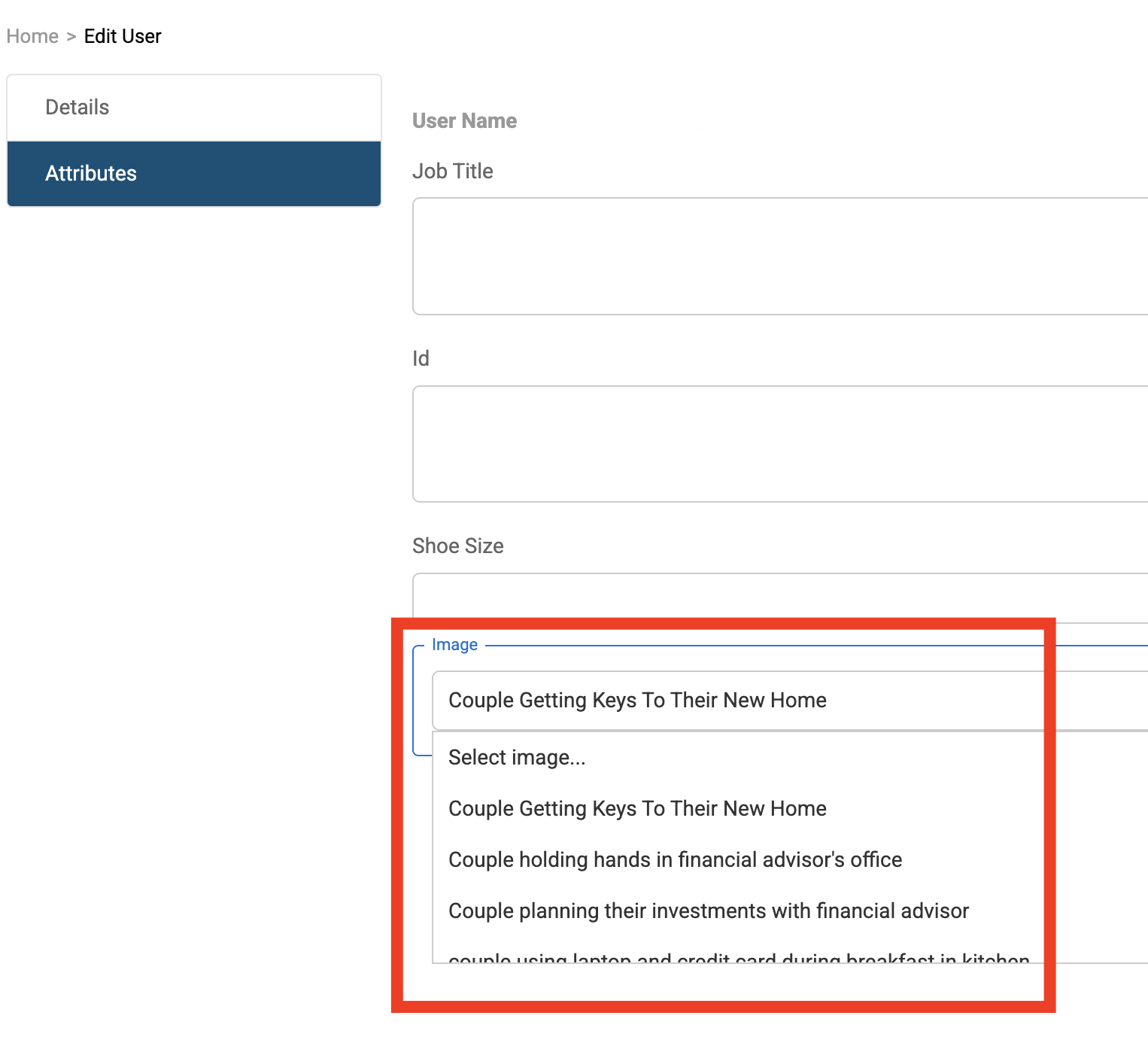
The first selected entry is deemed to be the user’s preferred asset. This may be adjusted by the user on their My Profile page (provided that this is not restricted by the applications configuration).
Having configured the above association, this is then carried on the user’s profile. The fields and values of the preferred asset can then be accessed by a template author in the design of a template and then presented back to the user during template configuration (see below, in Populate a template with user asset attribute values selection).
Enhancements to the reporting functionality
The reporting database has been enhanced to include new fields that are currently missing on the existing reporting database tables in the following areas:
Templates (Last Modified info)
Template Studio Highlights
Use answer from a dropdown question in a text question
You can now link a dropdown question to a text question using quick logic. When the user makes a selection from the dropdown menu, the selected value becomes the answer to the linked text question to allow further user editing.
Populate a template with user asset attribute values
You can link attributes of selected user assets in the user profile quick logic tab
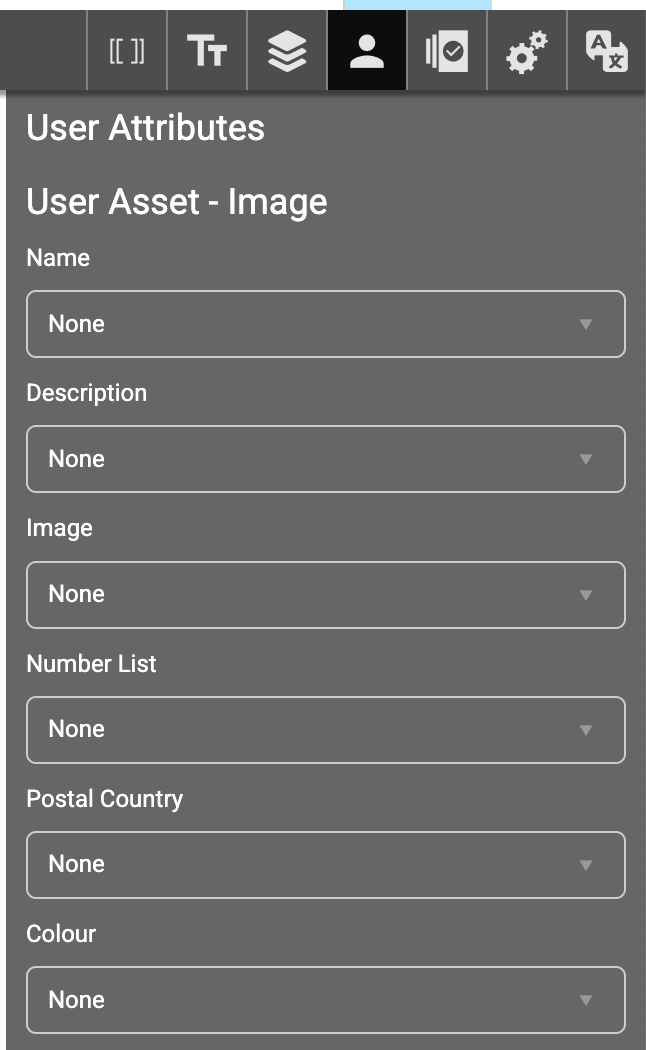
When the template loads, the attribute values from the user’s selected asset will populate the template.
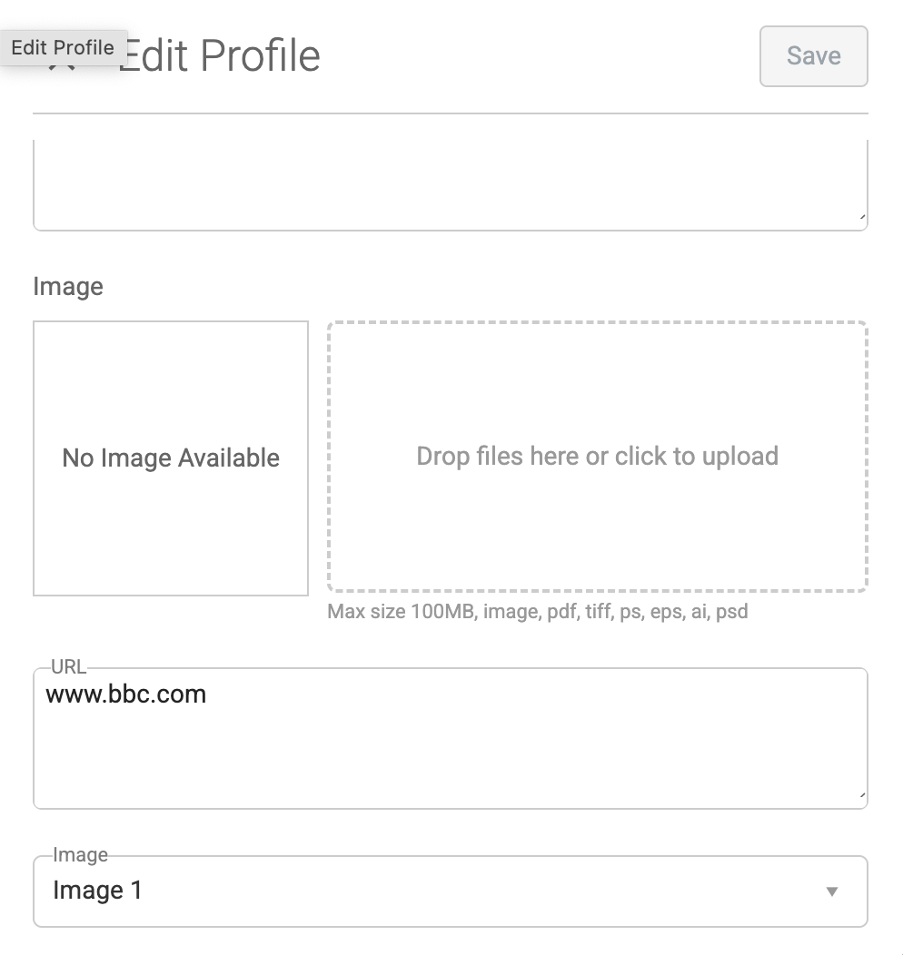
During customisation, the using can click the edit profile button to change the asset associated with their profile and update the template customisation
Sign up for blog updates
Fill out the form below to receive blog updates to help you streamline your brand asset management
Like to learn more about how Brandgility can help your organization?
Book a discovery call today