
Brandgility December Release: Whats New?
December 19th, 2025
Written by: Rob Atkinson, Product Specialist
Clearing the Clutter, Keeping the Control: Inside Our Latest Brandgility Release
Every brand team knows that moment.
You open your asset library to brief a new campaign…and it’s chaos. Old logos sitting next to refreshed ones. Outdated assets are still visible. Local teams asking, “Is this still on-brand?” while you quietly hope nobody uses the wrong asset in a live campaign.
This Brandgility December release is all about helping to solve that moment.
We’ve focused on three themes: cleaner libraries, smarter control, and smoother day-to-day workflows. Here’s how.
The Story of the Asset Archive: Saying Goodbye (Without Letting Go)
For many, asset libraries have quietly become a museum. Nothing was truly gone, just “not in use anymore”. But those “not in use” assets were still searchable, still selectable, and still a risk to potentially make it into the ether.
So we asked: What if you could confidently remove assets from circulation… without deleting them forever?
A new home for retired assets
Our new Asset Archive is that home.
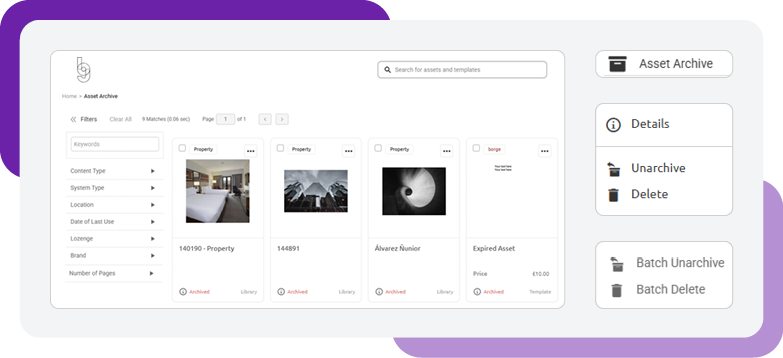
When the feature is enabled, and you have permission, you’ll see a new archive option under the administrator cog, where all archived assets are visible and can be managed.
A practical application for this feature would be from the asset library, you have the ability to:
Archive a single asset using the new “Archive” option under the ellipsis menu.
Archive in bulk by selecting multiple assets and choosing the new batch archive action.
Before anything moves, you’ll see a confirmation step, your final chance to review the selection and make any corrections before you commit.
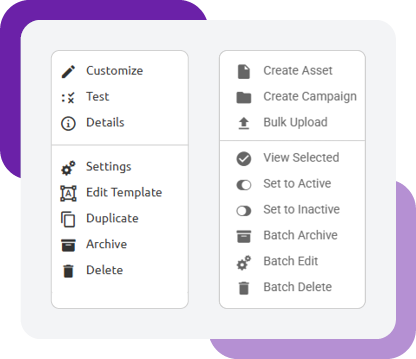
Once archived, assets:
Are given an “archived” status
Are removed from the main asset library
Are only visible to administrators with access to the archive
Are no longer usable by any other user type
In other words: your users see a cleaner, safer library, while admins keep a complete asset and brand element history.
A familiar, admin-only workspace
The asset archive itself is designed to feel instantly familiar. It looks and behaves much like the asset library, but with administrator-only access and archive-specific options.
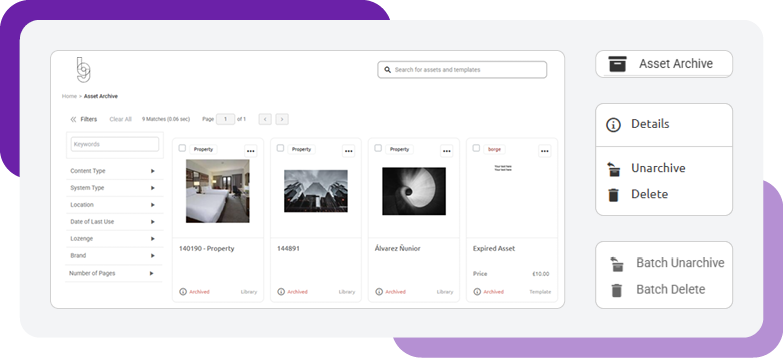
From here, administrators can:
Manage individual archived assets
Unarchive one or many assets via the ellipsis or batch “Actions” dropdown
Confirm any unarchive decisions via a confirmation step to avoid errors
When an asset is unarchived, it:
Returns to the asset library
Is set back to an inactive status, so you can review and re‑activate safely
This archive closes an important governance loop: you can now remove assets from circulation without losing traceability or control.
Application Settings: Control Without a Support Ticket
As our customers have grown in size and confidence handling their own systems, one message has been consistent: “We love the control, but we want more of it in our own hands.”
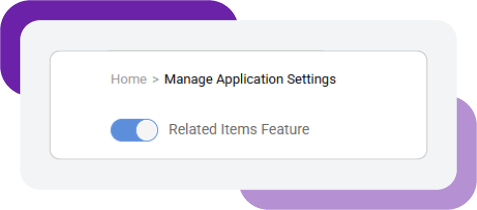
So we’ve introduced a new Application Settings area, available to users with certain permissions.
From here, account administrators can manage selected functionality themselves; there is no need to raise a ticket with support for every configuration change.
First stop: “Related items”
The first feature now governed from this page is Related items (introduced in our October Queen release).
A simple toggle lets you enable or disable the related items functionality.
When the toggle is on, related items are active.
Click once to switch them off again.
This is just the start. Over time, more configuration options will move into Application Settings, giving you greater control over how Brandgility behaves in your organization.
Small Workflow Fixes That Make a Big Difference
Some of the best improvements don’t grab headlines; they just quietly remove friction from your day.
This release includes several of those “it just works better now” upgrades.
Text with tabs: no more disappearing copy
Previously, changing a simple text section to use tabs in Manage UI could be confusing:
The original base text stayed hidden.
Tab 1 looked blank.
Admins often thought content had vanished.
Now, when you add tabs to a simple text section:
Any text in the base section is automatically copied to Tab 1.
And when you remove tabs and go back to a simple text section:
The text on Tab 1 is copied back to the base text.
Nothing disappears. Content follows you, so users can edit with confidence.
Expiry flash on tiles: important dates, front and center
On the home page and sub-page, tiles shown in the Last published and Last modified lists now display an expiry date flash (where relevant).
This makes it much easier for local teams and brand managers to:
Spot content that’s close to expiry
Prioritize updates
Avoid using expired assets in live campaigns
Related items from tiles: context where you need it
When a Last published or Last modified tile belongs to a campaign with Related items enabled, clicking that tile now opens the Related items dialogue.
Instead of treating content in isolation, users immediately see the wider campaign context, ideal for teams working on multi-asset, multi-channel campaign activations.
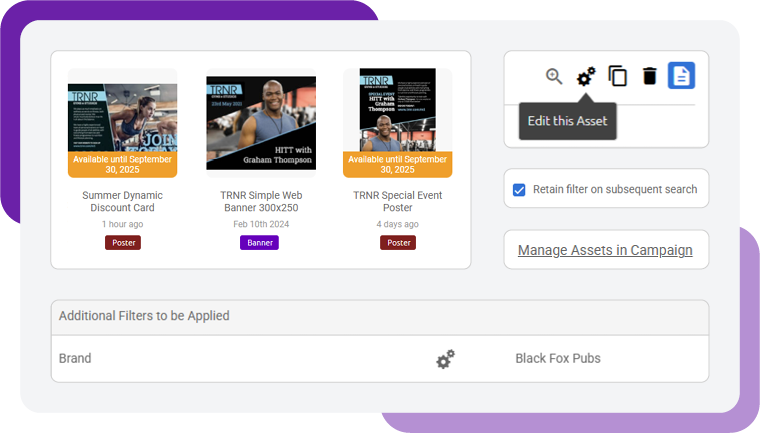
Smarter sub‑page filters: pre-filters that actually stick
For sub-pages where a filter (such as Brand) is configured to limit search results, those filters are now treated as pre‑filters:
They are applied automatically to the search.
They cannot be edited or removed by the non-admin user in the results view.
If you want subsequent searches on the same page to keep those pre‑filters, you can now enforce this via a new “retain filters on subsequent search” option.
The result: more reliable, controlled search behaviour aligned with your governance rules.
Managing assets from within a campaign
Campaign management should be about strategy and content, not hunting through different sections of the platform.
We’ve added a new option to manage assets directly from the campaign settings page:
Click the new ‘Manage Assets in Campaign’ link to open the asset flyout.
Select or deselect the assets that belong to the campaign.
You stay in context, make quicker decisions, and keep campaigns aligned with the right assets in just a few clicks.
Default address book entry: no more missing defaults
When a new address is being added to the address book and it’s the first entry:
The “default address” setting is now mandatory.
This ensures every account has a reliable default address for subsequent orders, reducing errors and the need for manual corrections later.
A cleaner hover experience on details pages
We’ve applied our new hover style to the action options on both the asset details and campaign details pages.
It’s a small visual improvement that makes actions:
Easier to discover
Easier to differentiate
More consistent across the platform
Template Highlights: Print-Friendly and Faster Navigation
Templates sit at the heart of Brandgility. This release brings new controls for print outputs and quicker access to key template actions.
Crop marks: control when and how they appear
For customers working closely with commercial printers, crop marks can’t just be an afterthought.
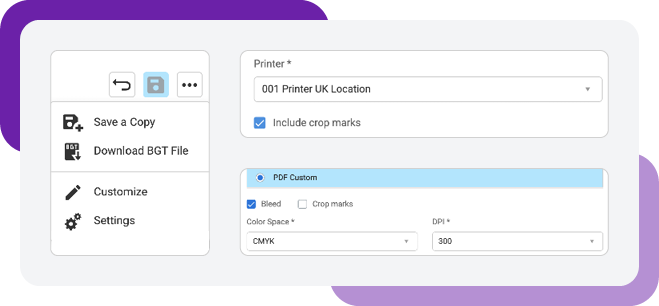
We’ve added new options to include or remove crop marks on output:
If you’re using the order workflow, crop marks are controlled via a new setting on the Output Spec.
If you’re using the download workflow, the crop mark option is available in Custom PDF settings.
Asset settings from the template editor
We’ve also made it easier to move between template editing and asset management.
A new “Actions” button on the template editor page now gives you direct access to:
Save a copy of the template
Download a BGT file
Jump straight to end user customization
Jump directly to the asset settings page
No more back-and-forth through multiple menus, everything you need is just one singular click away from what you’re already working on.
What This Release Means for You
Across all of these updates, the goal is simple:
Cleaner libraries via the asset archive
More control in the hands of admins via Application Settings
Smoother, more intuitive workflows for everyone using Brandgility day to day
Together, these changes reduce risk, save time, and make it easier for global and local teams to work from a single, trusted source of truth.
Sign up for blog updates
Fill out the form below to receive blog updates to help you streamline your brand asset management
Like to learn more about how Brandgility can help your organization?
Book a discovery call today